Navigating the catalog
Finding experience details
2 min read
Before you commit a team's hour, you want to know exactly what the session covers. The details view answers that in one screen.
- 1
Open the catalog
Go to the Toolkit Catalog and choose Categories in the top navigation. Every experience lives inside one of the category tiles.
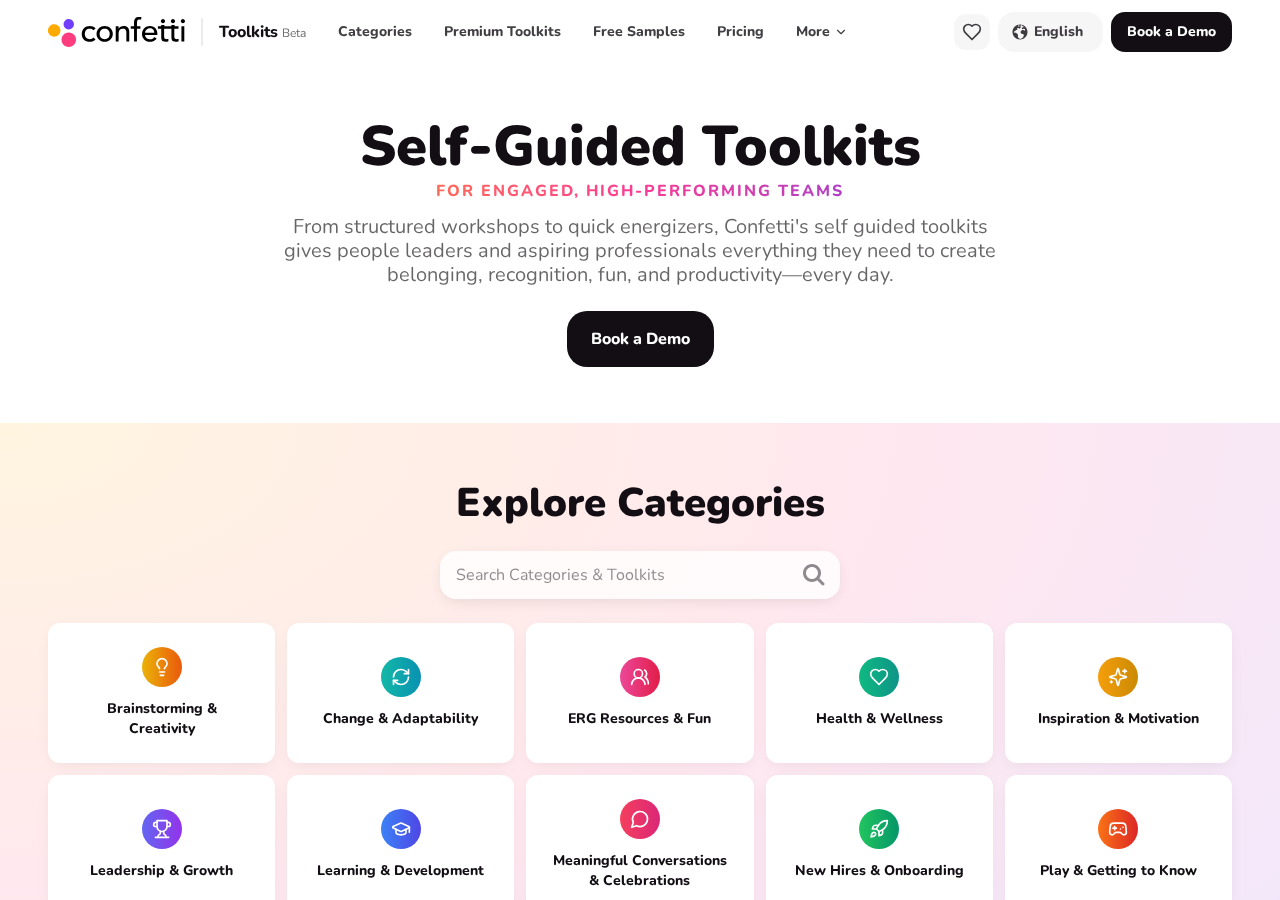
The Toolkit Catalog home page at toolkits.withconfetti.com. - 2
Pick a category
Categories are grouped by outcome — onboarding, wellbeing, team dynamics, ERG, leadership and more. Selecting one opens every experience inside it.
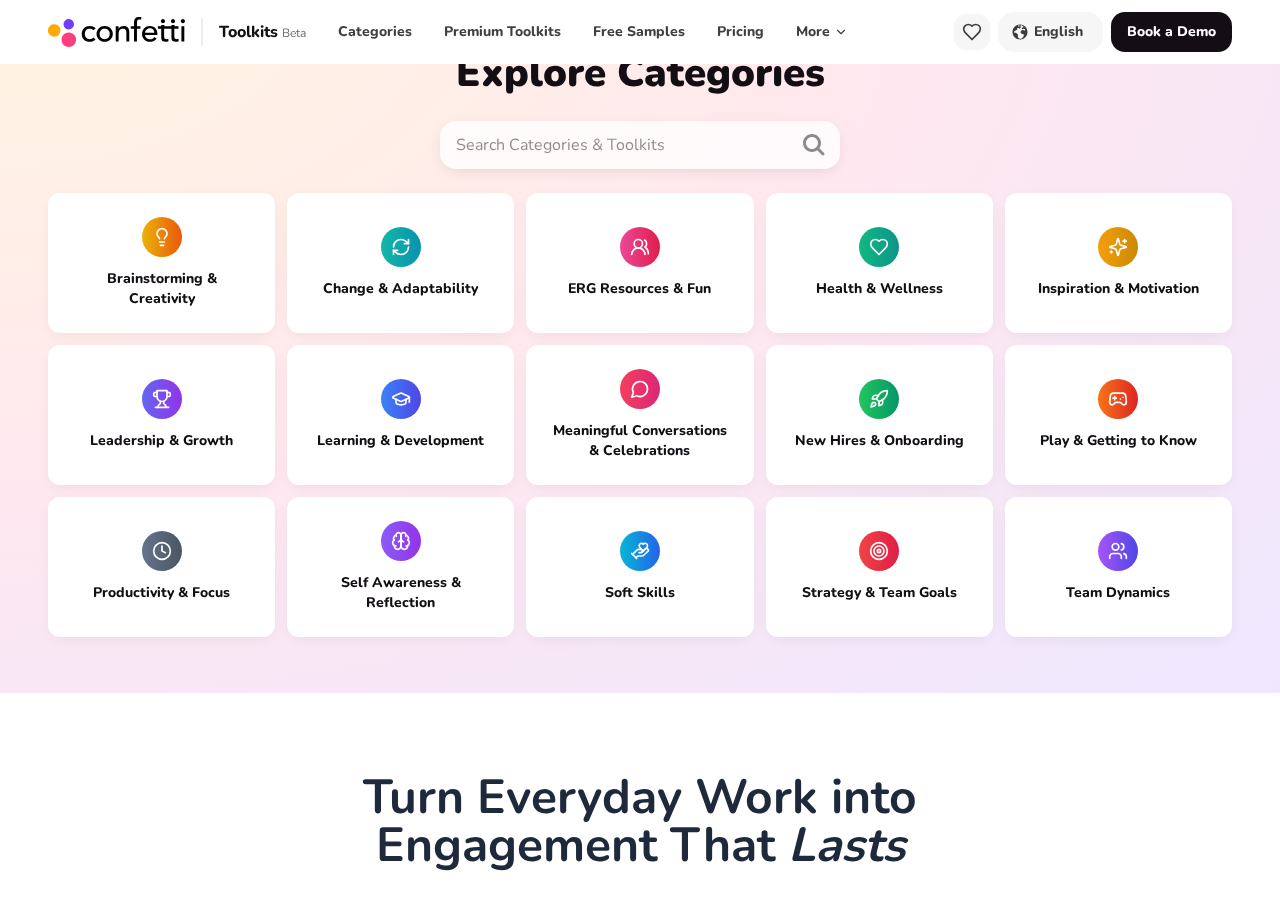
Use the search box or a category tile to narrow the catalog. - 3
Read the category header
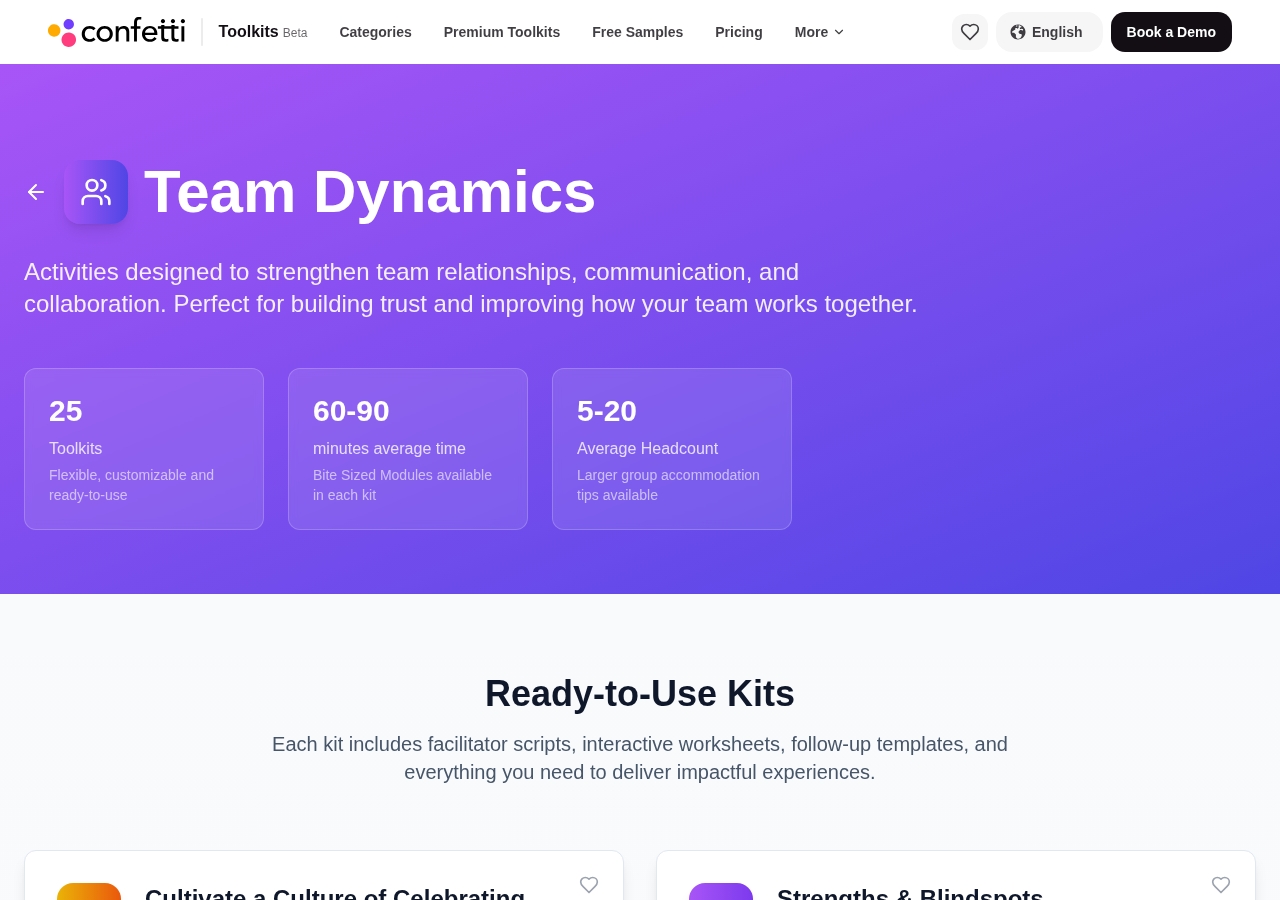
Each category page opens with how many toolkits it contains, the typical session length, and the average headcount they suit.
- 4
Scan the card for the basics
Each card shows the things people ask first, without a click.
- Title and a short description of the session
- Duration — how long to block out
- Group size — how many people it works for
- Experience type — Connection & Play, Knowledge & Collaboration, and so on
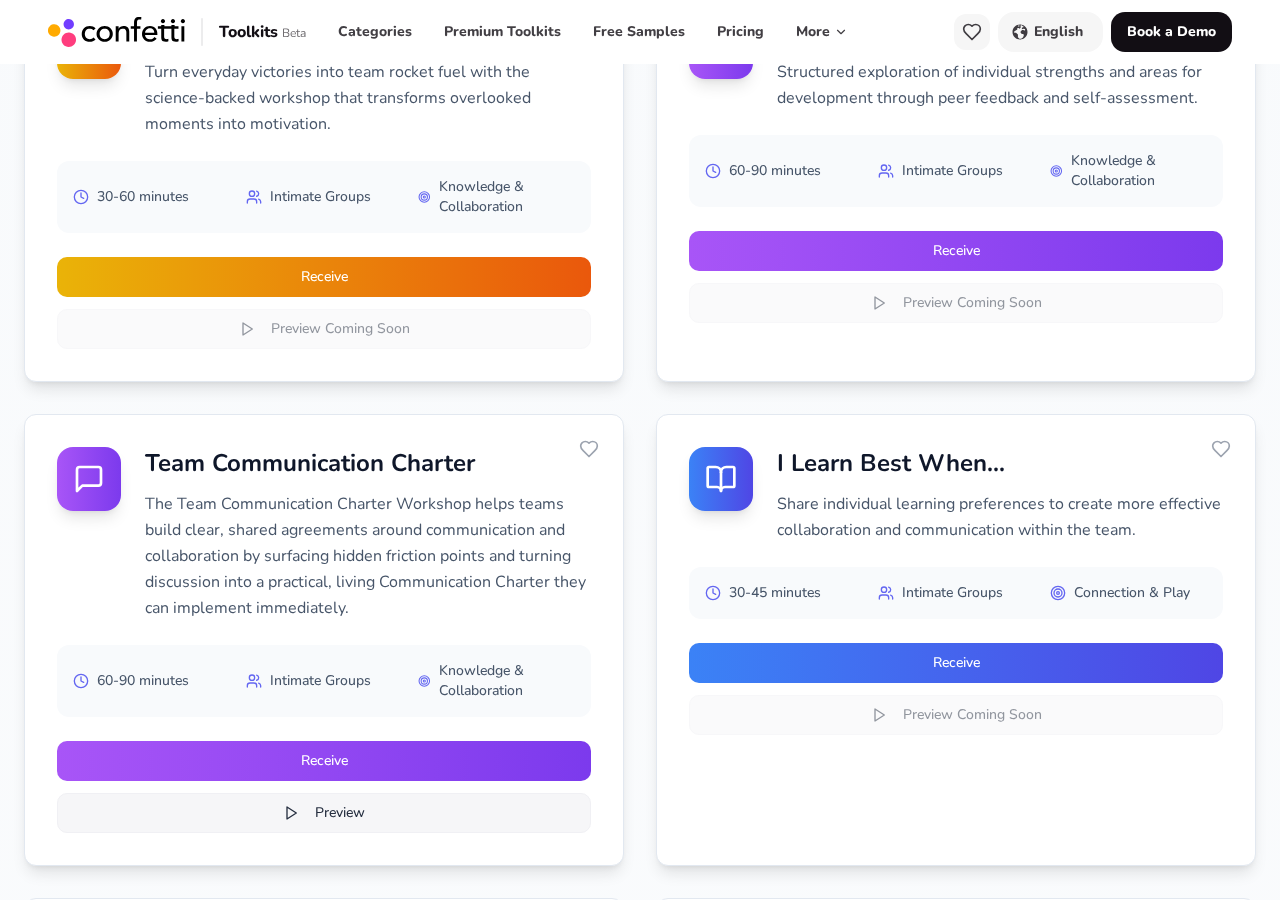
Duration, group size and experience type sit on every card. - 5
Request the toolkit
Select Receive on a card, enter your company email address, and the materials are sent to you — provided your address or domain is on the approved list.
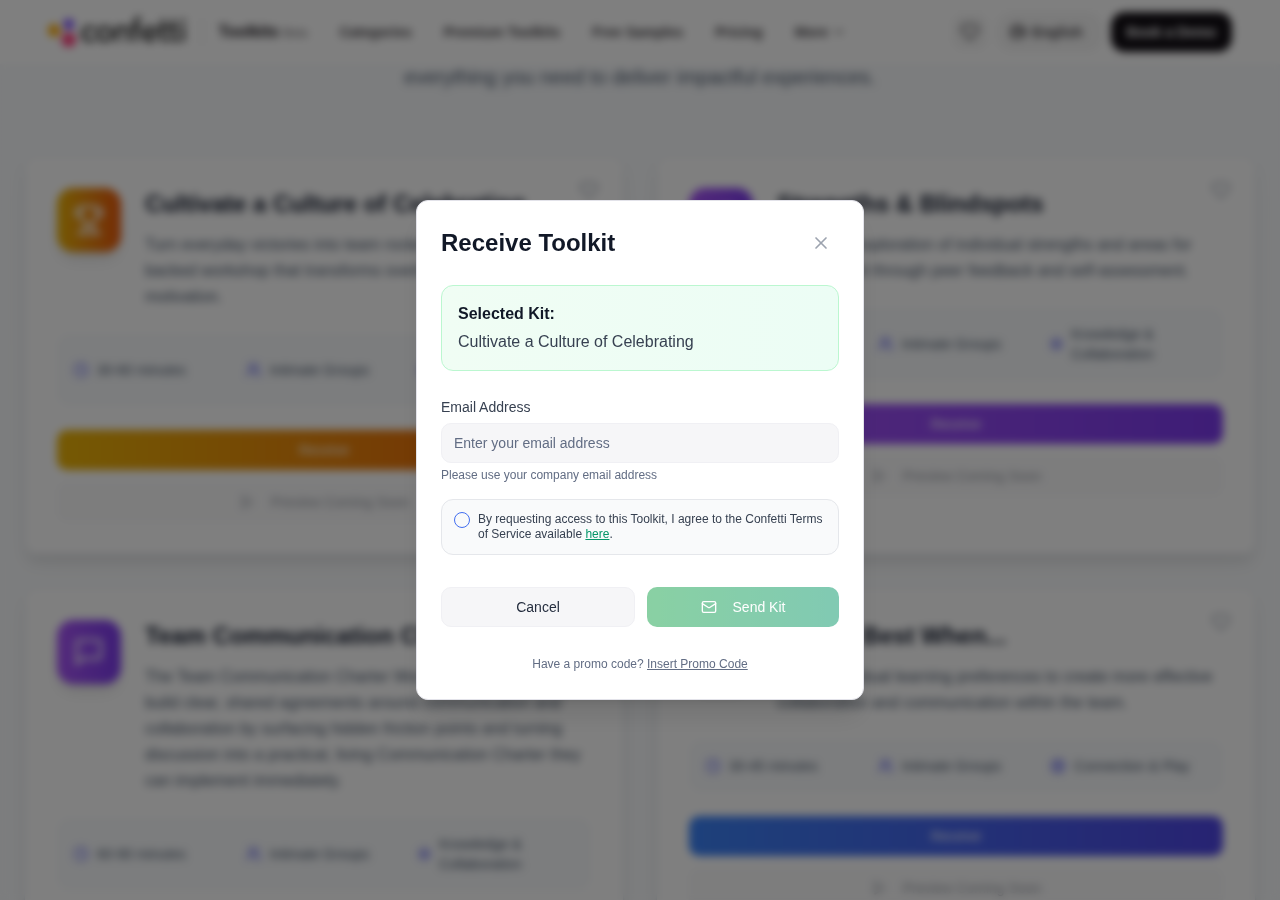
The Receive dialog runs the approval check before anything is sent.
Common questions
- Where do I see the actual materials?
- Materials are delivered by the Toolkit Catalog itself once your access is approved. Catalog pages describe the session; the Receive flow delivers the files.
Ready to put this to work?
Generate a personalized set of recommended experiences and share it with your team.
Get personalized Toolkit Recommendations