Running a session
How to log in and use Banter Box
5 min read
Banter Box turns question, quiz, photo, and mixed-format packs into live group sessions. This guide covers the host journey from opening your customer link to running the activity.
The core steps come from the Banter Box walkthrough. Sacred Sounds is shown as a worked example, so its exact question count and instructions will differ from other experiences.
- 1
Open Banter Box and choose the Client Portal
Open the Banter Box link supplied with your toolkit. On the welcome screen, select Client Portal. The Admin Portal is not part of the customer setup flow.
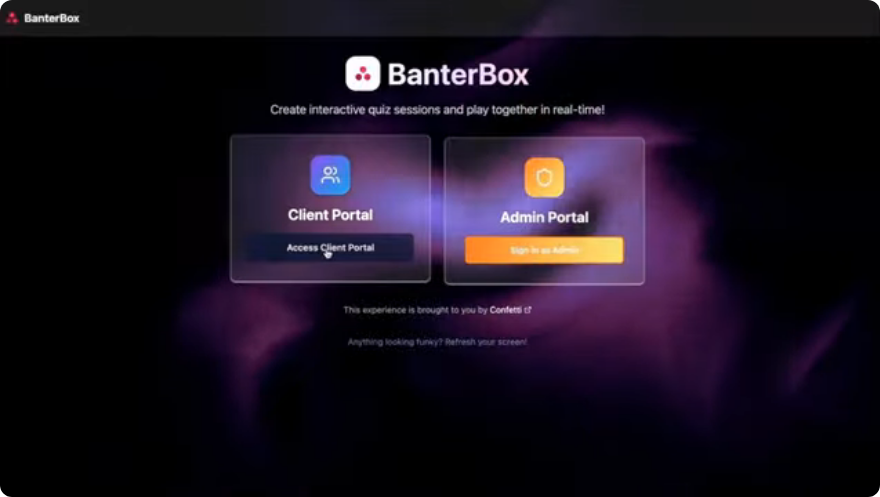
Customers begin with Client Portal. - 2
Sign in with your customer password
Enter the client password supplied with your Banter Box access, then select Sign In as Client. Keep this password within the group that is approved to host sessions.
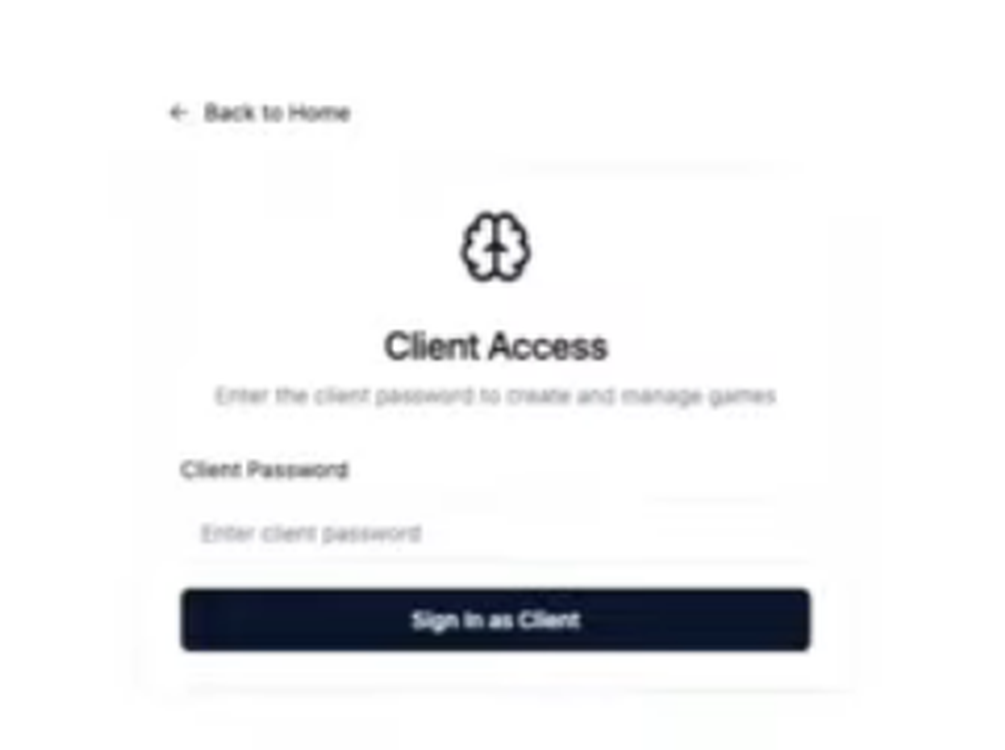
Use the client password that came with your Banter Box access. - 3
Find the relevant experience pack
Open the Pack Selection menu and choose the experience you plan to run. Packs may be questions, quizzes, photos, or a mixture, so the participant activity will vary by experience.
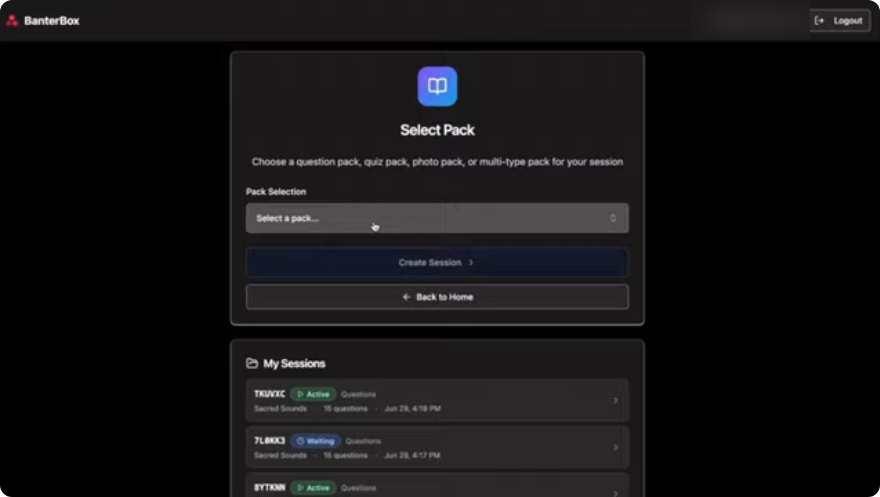
The pack menu contains the experiences available to your account. - 4
Create the session
Check the selected pack and its number of available questions, then select Create Session. In this example the host chooses Sacred Sounds, a 15-question pack.
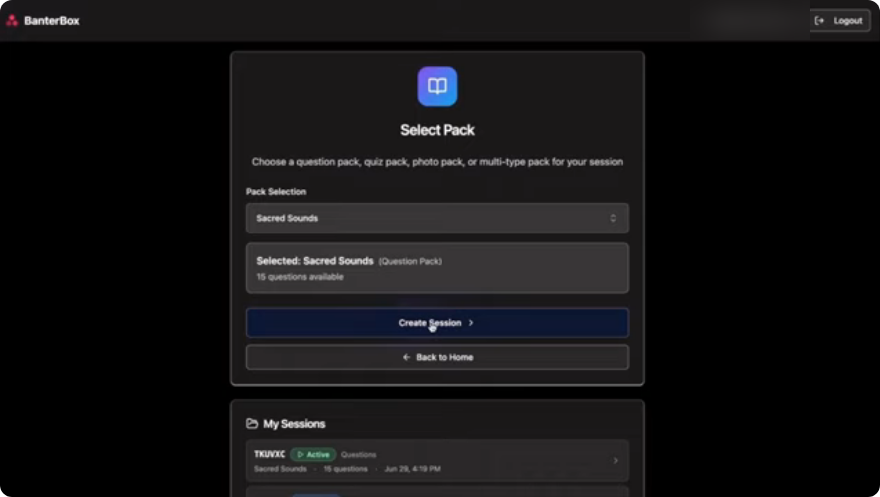
Sacred Sounds is the worked example; other packs can have different formats and question counts. - 5
Prepare the Host Dashboard
Review the experience instructions and the first prompt before participants arrive. The dashboard shows the session status, player count, question progress, and the controls you will use while facilitating.
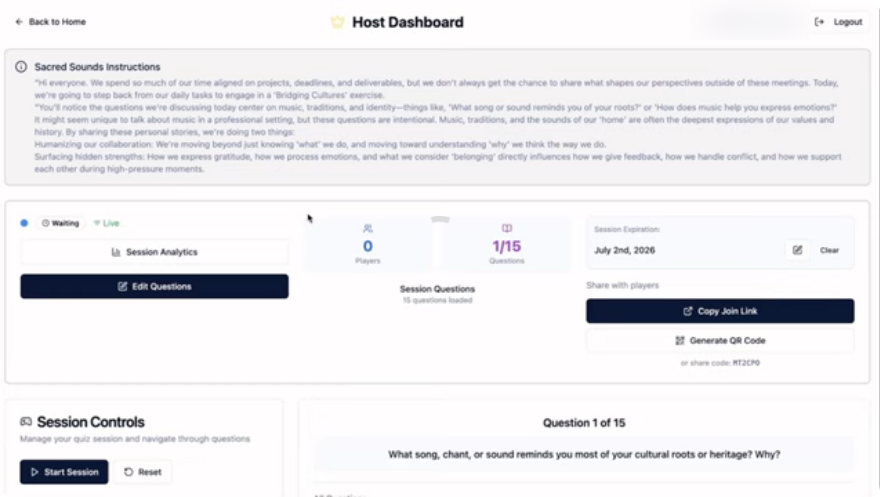
Read the pack-specific instructions before you start the live session. - 6
Share the participant access details
Use Copy Join Link to send participants the direct joining link. You can also display a QR code or share the short session code shown on the dashboard. Leave the Host Dashboard open while people join and check the player count.
- Send the join link in the meeting chat for remote groups
- Display the QR code for participants joining from their phones
- Use the short code when someone cannot open the direct link
Choose the joining method that best suits your group. - 7
Move through the activity as facilitator
When everyone is ready, select Start Session. Use the Host Dashboard to present each prompt and move through the pack. Watch the player and question counters so the group stays together; use Reset only when you intentionally want to restart the session.
Session Controls sit beside the current question on the host screen. - 8
Review or finish the session
At the end, review the session information available on the Host Dashboard and confirm the activity is complete before closing it. Your home screen keeps created sessions in My Sessions, making it easy to return to an existing session if needed.
Created sessions appear in My Sessions beneath the pack selector.
Watch the walkthroughs
Both recordings are short and cover the same journey this guide describes — watch them for the pace, wording, and on-screen detail the written steps summarize.
Common questions
- Which portal should customers use?
- Use Client Portal. Admin Portal is not required to choose a pack, create a session, or facilitate it.
- Will every experience look exactly like Sacred Sounds?
- No. Sacred Sounds is a question pack with 15 prompts. Other packs can use quizzes, photos, or mixed activity types and may contain a different number of questions.
- How do participants join?
- Share the direct join link, display the QR code, or give them the short session code shown on the Host Dashboard.
- Can I return to a session after leaving the page?
- Created sessions appear under My Sessions on the pack-selection screen. Open the relevant entry to return to it.
Ready to put this to work?
Generate a personalized set of recommended experiences and share it with your team.
Get personalized Toolkit Recommendations